


Login Security features
Every feature, grouped by what it does. All 20 are in every plan.
$19 a year for one site · or pay once from $49
See the plansStopping the guessing
14 features
-
Five wrong passwords and you are out
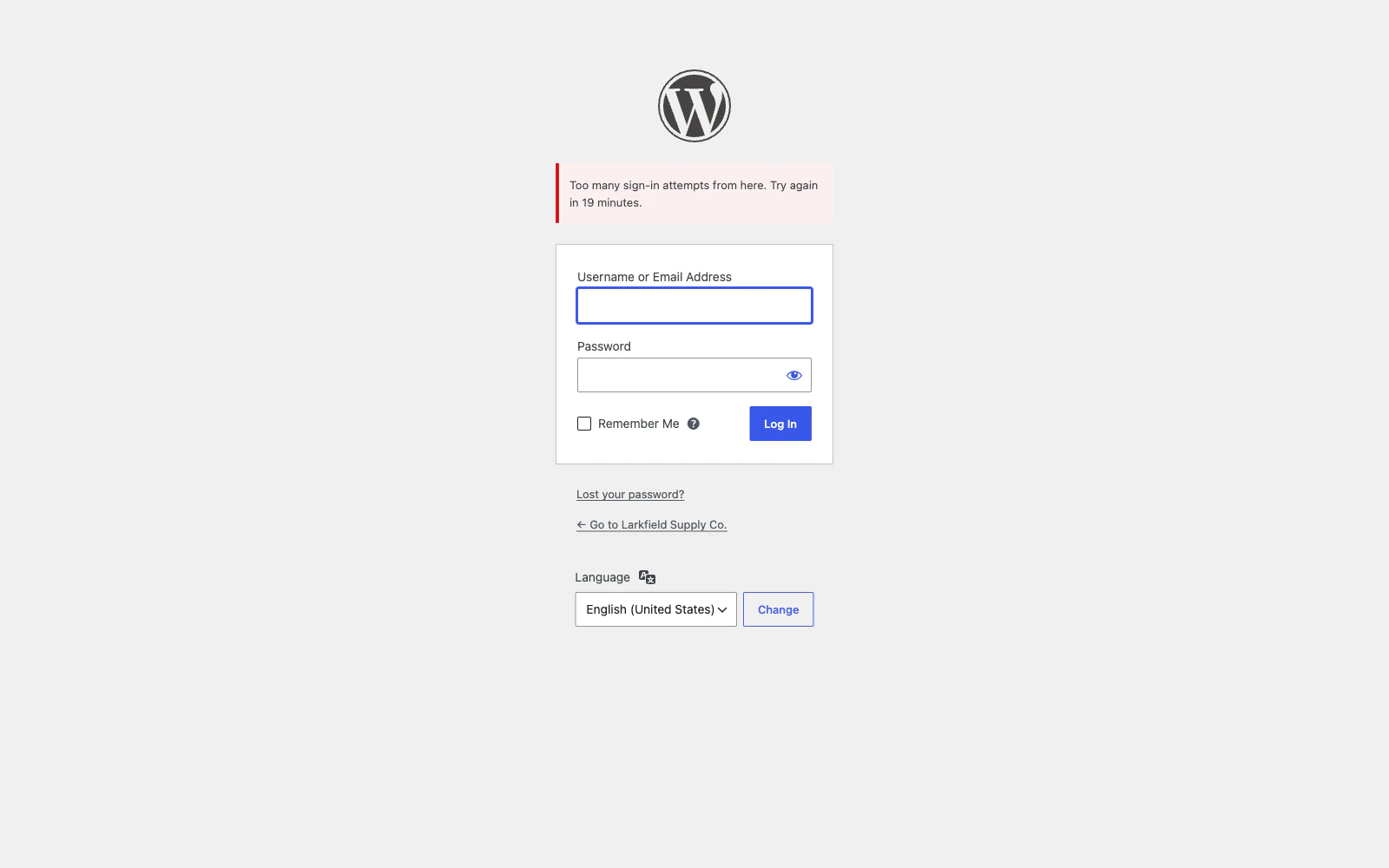
Count the failures from one address inside a window you choose, and lock it out when it goes past.
More: Five wrong passwords and you are out
The first lockout is twenty minutes, the next is an hour, then three, then nine, then a day — because a machine that comes straight back has learned nothing and a person who remembers never sees the second one. A correct password clears the count against that account, and never the address's: signing in to an account of your own does not buy more guesses at anybody else's.
-
It also catches the slow, spread-out kind
One password list worked through from a thousand different machines never reaches five tries from any of them, so counting by address alone never notices it at all.
More: It also catches the slow, spread-out kind
This counts the failures against one username too, across every address they came from.
-
Refused before the password is checked
A password hash is deliberately slow to compute — that is the whole point of one — and a site that checks every guess before saying no has been taken down by its own defence.
More: Refused before the password is checked
A locked-out address is turned away at the very first hook WordPress offers, before it has looked anything up.
-
Usernames nobody on your site has
admin, administrator, root, test, webmaster and a few more.
More: Usernames nobody on your site has
A request trying one of those is a machine working from a list, and it can be told no without touching the database. Checked against your own users first, so a site that genuinely has somebody called support never refuses them.
-
A second step, with nothing sent anywhere
Six digits from an authenticator app after the password — the only thing here that helps against a password somebody else already has.
More: A second step, with nothing sent anywhere
No text messages, no account with a service, no third party: the app and your site share a secret and both look at the clock. The QR code is drawn on your own server rather than fetched from a chart service, because the one thing on that screen that must not leave your site is the secret. Ten recovery codes, an administrator can switch it off for anybody, and WP-CLI can too. On a WooCommerce shop, customers set it up in a Two-step sign-in tab in My Account, where WooCommerce keeps them, and are asked for it when they sign in there.
-
Refuse a password a machine would find
Counting wrong passwords is worth nothing if the right one is on every list.
More: Refuse a password a machine would find
Set a minimum length and refuse the usual passwords — decoration and all, because Password1! is password with a shift key — along with keyboard runs, rows of digits, and anything holding the username or the site's name. Checked when somebody sets or resets one, entirely on your own server, with nothing sent anywhere. Every form, including WooCommerce's own registration, account and reset pages — which are the ones your customers actually meet. The passwords already on your site are judged the next time each owner signs in, for the people the rules apply to, and anybody whose password fails is asked to change it and listed on the Users screen. The password itself is never stored. Off until you switch it on, and it applies either to everybody or only to the people who can change the site.
-
Usernames nobody can look up
A stock WordPress site hands out its usernames to anybody who asks: the /?author=1 redirect, the REST API's user list, the author of every embed and the author sitemap.
More: Usernames nobody can look up
All four are closed, while author pages and bylines stay. And the Settings screen names anybody whose public name is still their username, which no setting can hide.
-
XML-RPC, without breaking Jetpack
One XML-RPC call can carry hundreds of password guesses in a single request, which is how large-scale guessing is actually done.
More: XML-RPC, without breaking Jetpack
The default blocks that one call and leaves everything else working, so Jetpack and the mobile app carry on. You can also switch XML-RPC off entirely, or leave it exactly as WordPress has it.
-
Move the sign-in page
Off by default, and honest about what it is: it does not make a password harder to guess, it stops the machines finding the page.
More: Move the sign-in page
On most sites that is thousands of requests a month arriving as a 404 instead of as a password check. The new address is shown and emailed the moment you save it.
-
The same answer whichever half was wrong
WordPress says "Unknown username" for one and "the password you entered for the username X is incorrect" for the other, which hands a machine the answer to half its problem: it learns which usernames exist and spends everything on those.
More: The same answer whichever half was wrong
While "Stop somebody after too many wrong passwords" is on, both get the same sentence, on wp-login.php, a moved sign-in page and WooCommerce's My Account alike, and on the WordPress sign-in page the name stays in the box and the form shakes either way. A password reset for a name that is not an account goes on to the page a real one gets, sending nothing. The registration form keeps WordPress's own words, so somebody signing up is told what to fix.
-
Password reset emails, limited
The lost-password form sends a real email every time anybody asks, so a machine going down a list of usernames fills your users' inboxes and your mail allowance.
More: Password reset emails, limited
By default, three emails an hour for one account and five requests from one address, and while the limit is on, an address locked out for guessing is told how long to wait instead of being sent one. A request your CAPTCHA turned away, or an email your site could not send, uses up nobody's hour, and a made-up name is refused at its fourth like a real one. On wp-login.php and WooCommerce's My Account alike. Trusted addresses and signed-in administrators are never limited.
-
Fake sign-ups turned away, with no puzzle
Machines that make accounts send welcome emails to made-up addresses and fill your customer list.
More: Fake sign-ups turned away, with no puzzle
The sign-up forms on wp-login.php and WooCommerce's My Account turn them away: a field only a machine fills in, a form sent back too quickly, and a limit of new accounts from one address in an hour. At checkout only the limit applies: the field and the clock never stop a customer paying, though an order that would make one account too many from one address in the hour is refused. Everything happens on your own server, and each sign-up turned away is in the log with the reason. On for new sites; a site that already had the plugin is asked first.
-
Bring second steps over from Wordfence or Two Factor
People who set up an authenticator app with Wordfence, Wordfence Login Security or Two Factor keep it: one button copies each secret across, so nobody scans a new QR code.
More: Bring second steps over from Wordfence or Two Factor
It lists who would come across first, works with the other plugin switched off, and changes nothing of the other plugin's. Anybody with a second step here already keeps theirs, and each person brought over is asked to make ten new recovery codes on their profile. WP-CLI does the same, with a dry run.
-
Skip the code on a browser you choose, if you allow it
Off until you switch it on.
More: Skip the code on a browser you choose, if you allow it
Then the code screen offers "Do not ask on this browser for 30 days", on wp-login.php and at My Account. You choose the days and the roles it is never offered to, and administrators start left out. The cookie is HttpOnly, sent over HTTPS only and kept for your site alone, and only a keyed hash of it is stored. A new password ends it, and people can forget any browser from their profile.
Seeing what happens
3 features
-
Every attempt, written down
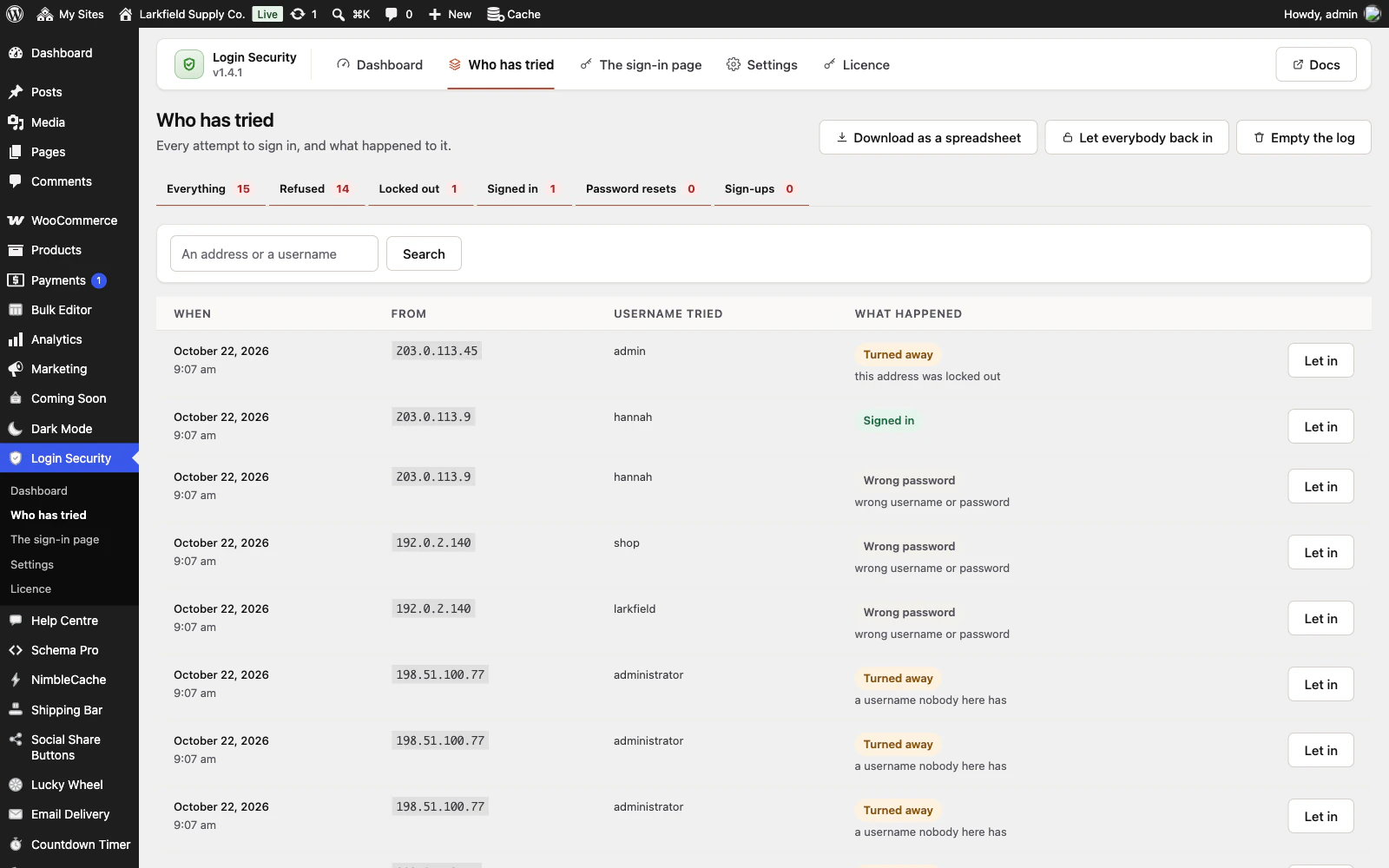
When, from which address, which username was typed, and what happened to it — signed in, wrong password, turned away, locked out.
More: Every attempt, written down
Searchable by address or username, filterable by outcome, and kept for as long as you choose. Successes are in there too, because "was that me?" is the question somebody asks the morning after.
-
Told once a day, not forty times
An email when somebody is locked out, at most one a day however many there are — because a site the machines have found is locked out dozens of times a day and forty emails teaches you to ignore the forty-first.
More: Told once a day, not forty times
It names the address and why the lockout happened, the username when one was tried from many addresses, and how many attempts were refused in the last day while attempts are being recorded.
-
See who has a second step
Requiring a second step only reaches somebody the next time they open the admin.
More: See who has a second step
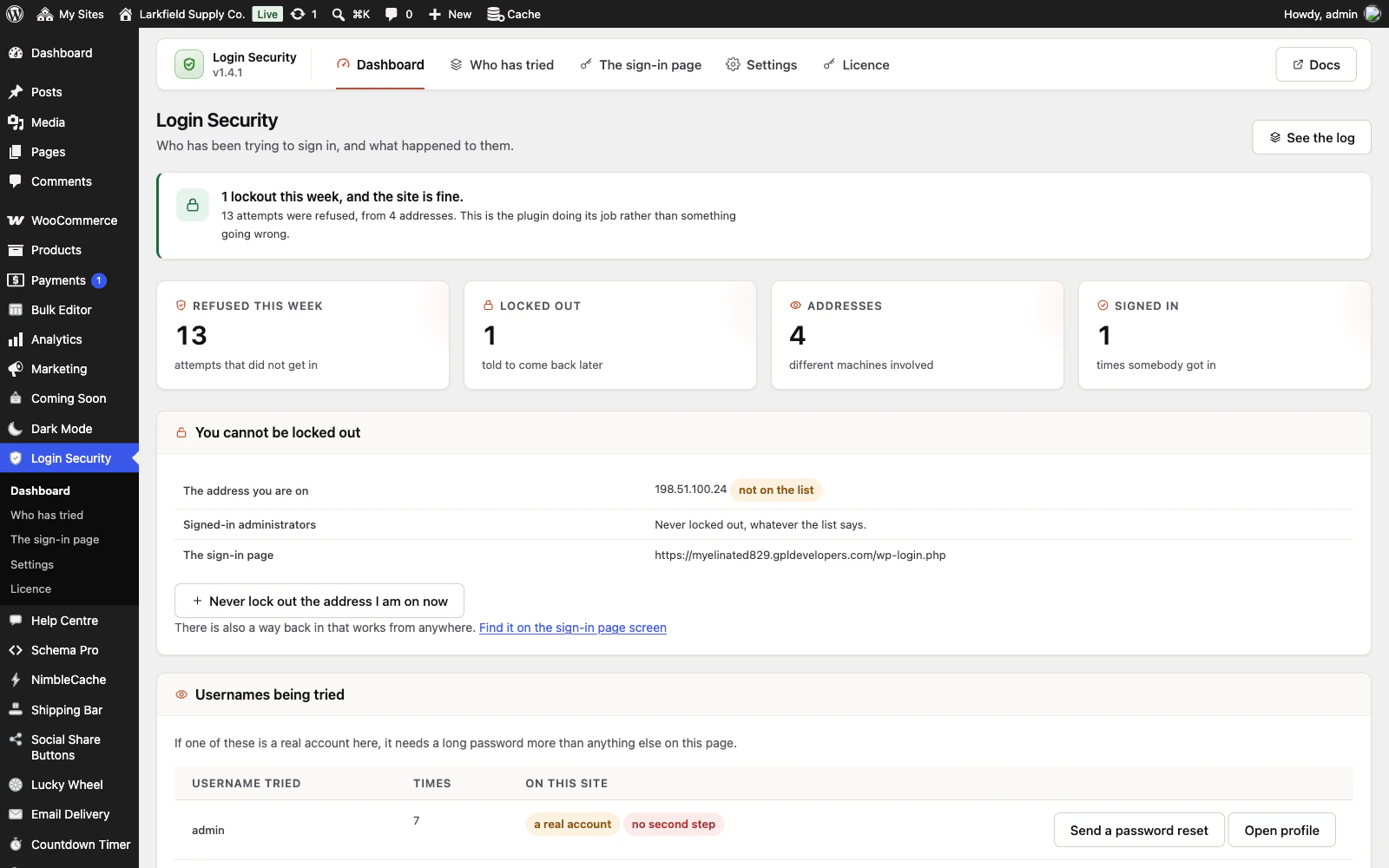
A Second step column on Users, with recovery codes left, a link that lists the people who can change the site and have not set one up, and the count on the Settings screen. On the Dashboard, a real account being guessed at with no second step gets a Send a password reset button, for anybody who could edit that account from the Users screen.
Not locking you out
3 features
-
You cannot lock yourself out
A signed-in administrator is never locked out.
More: You cannot lock yourself out
The address you switched the plugin on from is added to the trusted list automatically. There is a recovery link that trusts whatever address you open it from for an hour, so it works from a train or a phone. And WP-CLI can unlock anything from the command line if all else fails.
-
Trusted addresses, including whole ranges
One per line: a single address, a range written as 203.0.113.0/24, or 203.0.113.* which means the same thing.
More: Trusted addresses, including whole ranges
An office, a VPN, a monitoring service. Their attempts are still recorded — trusted means never locked out, not invisible.
-
WP-CLI for everything
wp login-security status for what is going on, unlock for one address or everybody, trust to add an address, door to print the sign-in address, log to read the attempts, and two-factor to list who has a second step or switch one off.
More: WP-CLI for everything
Which is the way back in that works when the admin screens are the thing you cannot reach.
Pricing
Every plan includes every feature. Choose how many domains, and whether to pay yearly or once.
Pay yearly renews until you cancel
Pay once (lifetime) no renewals
- Every plan includes every feature. You choose only the number of domains.
- 30-day refund, no reason needed. Refund policy
- Licence key and download straight after payment, by Stripe.
- A lapsed licence stops updates and support. It never switches a feature off.
- Local, development and staging copies are free and do not count against your domains.
- Yearly plans renew at the then-current price until you cancel. Cancel any time from your account.
- Where tax applies it is calculated at checkout and shown before you pay.