


WooCommerce can change prices in bulk by itself: tick products under Products → All Products, choose Edit from Bulk actions, and pick Increase existing price by (fixed amount or %). It only changes simple and external products, rounds to your store's decimals with no .99 endings, shows no preview, has no undo, and removes the scheduled sale dates of every product whose price it changes. For anything bigger, export your products first, change the prices in a spreadsheet and import them back; the file you exported first is your undo.
What WooCommerce can do by itself#
- Go to Products → All Products. Narrow the list with the filters above it (category, product type, stock status) and press Filter.
- To fit more on one page, open Screen Options at the top right and raise Number of items per page. WordPress accepts up to 999.
- Tick the products, or the box in the heading row for the whole page, choose Edit from Bulk actions and press Apply.
- Beside Price, choose Increase existing price by (fixed amount or %): or Decrease existing price by (fixed amount or %):. Type
2for a fixed amount or10%for a percentage. - Press Update.
WooCommerce's Bulk Editing Products page describes every field. What it does not spell out, we read in WooCommerce's code (11.1) and then checked on a test shop running 11.2:
- Only simple and external products change. A variable product can be ticked and "updated", but its variations keep their prices: a variation at 30.00 was still 30.00 after a 10% increase.
- The result is rounded to your store's number of decimals and nothing else, so 13.88 plus 10% became 15.27. Nothing here ends prices in .99.
- Changing a regular or sale price this way removes that product's sale dates. A sale scheduled to start in two days went live straight away after a price increase, at the sale price and with no end date.
- If the new regular price lands below the sale price, the sale price is removed.
- There is no preview and no undo. The new prices are live as soon as the list reloads.
Variations have their own tool, one product at a time. Open the product, go to Product data → Variations and use the list of bulk actions there, such as Increase regular prices (fixed amount or percentage). It asks for the amount and applies it to every variation of that product at once, skipping any variation that has no price.
Plan it before you change anything#
Make the copy you will undo from. On Products → All Products, press Export. Under Which columns should be exported? choose at least ID, Type, SKU, Name, Regular price, Sale price, Date sale price starts and Date sale price ends, then press Generate CSV. Keep that file unopened somewhere safe and work on a copy. The exporter lists variations as rows of their own, so they are in it too. The Product CSV Importer and Exporter documentation covers both tools.
Then decide three things before touching a price. Which products: a category, a brand, or everything except a few with prices you are not free to change. Which way to round: up to the next .99, which never lowers a price, or to the nearest. And what happens to sales that are running or scheduled: a 10% rise on the regular price leaves a fixed sale price where it was, so the discount the shopper sees grows.
Raise or lower prices with .99 endings in a spreadsheet#
Open the copy of your export in a spreadsheet. WooCommerce writes the columns chosen above in its own order, and Regular price comes last, in column H. Put this in I2, beside the first price:
=IF(H2="","",IF(H2=0,0,ROUND(CEILING(ROUND(H2*1.1+0.01,2),1)-0.01,2)))Read it from the inside out. H2*1.1 is the rise; use 1.05 for a smaller one or 0.9 for a cut. The 0.01 pairs give a .99 ending, rounding up to the next one, so 19.00 raised by a tenth becomes 20.99 and a price that already ends in .99 keeps it. For .95 endings, use 0.05 in both places. The two IFs leave empty prices empty, as variable products' own rows are, and keep a free product free instead of pricing it at 0.99. Some spreadsheet apps in some languages want ; between the parts of a formula instead of ,.
Fill the formula down, then read the new column against the old. Sort by the new column and look at both ends: a price of zero or a price ten times too big shows up there at once. When it looks right, copy the new column, paste it over Regular price as values only, and delete the helper column. Do the same for Sale price if you are moving sale prices too.
Before you import, open the file in a plain text editor and look at a few prices. A spreadsheet set to a language that writes decimals with a comma can save 12.50 as 12,50, and on a store that writes decimals with a point, WooCommerce's importer reads 12,50 as 1250. We tried it on the test shop; it did exactly that.
To import: Products → All Products → Import, choose the file, tick Update existing products ("Existing products that match by ID or SKU will be updated"), and press Continue. On Column mapping, keep ID and the price columns and set everything else to Do not import, then press Run the importer. Only the columns you map are written: on the test shop a product's description and sale price were untouched by an import that carried only its SKU, regular price and stock. The importer works through the file 30 rows per request, so a long file is many short requests rather than one long one.
Avoid changing prices with SQL. WooCommerce keeps a product's price in more than one place, including the _price it charges and a lookup table it sorts and filters by, and an update to one of them leaves the shop showing and charging the old figure.
Variations, sale prices and sale dates#
In the export, each variation is a row with its own ID, so the spreadsheet route treats variations like any other product. The variable product's own row has no regular price, and the formula leaves it alone.
For a sale across many products, WooCommerce's bulk edit has Set to regular price decreased by (fixed amount or %): next to Sale. Like every price change there, it removes the sale dates, so set them afterwards. In a spreadsheet you can fill Date sale price starts and Date sale price ends in the same import. WooCommerce starts a sale at 00:00:00 on the From date and ends it at 23:59:59 on the To date, as the help text beside Sale price dates on the product screen says, and both times are read in the time zone set under Settings → General.
Check the result, and undo it if it is wrong#
Open a handful of products on the shop itself, signed out: one simple product, one variable product and its price range, and one that is on sale. Add one to the cart and check the total. Then look at the products you meant to leave alone.
If something is wrong, import the file you exported at the start, the same way, mapping ID, Regular price and Sale price. Map the two sale date columns as well if you used WooCommerce's bulk edit, because that removed the dates and only the file has them. WooCommerce keeps no history of price changes, so without that file there is nothing to go back to.
Doing it with Bulk Editor for WooCommerce#
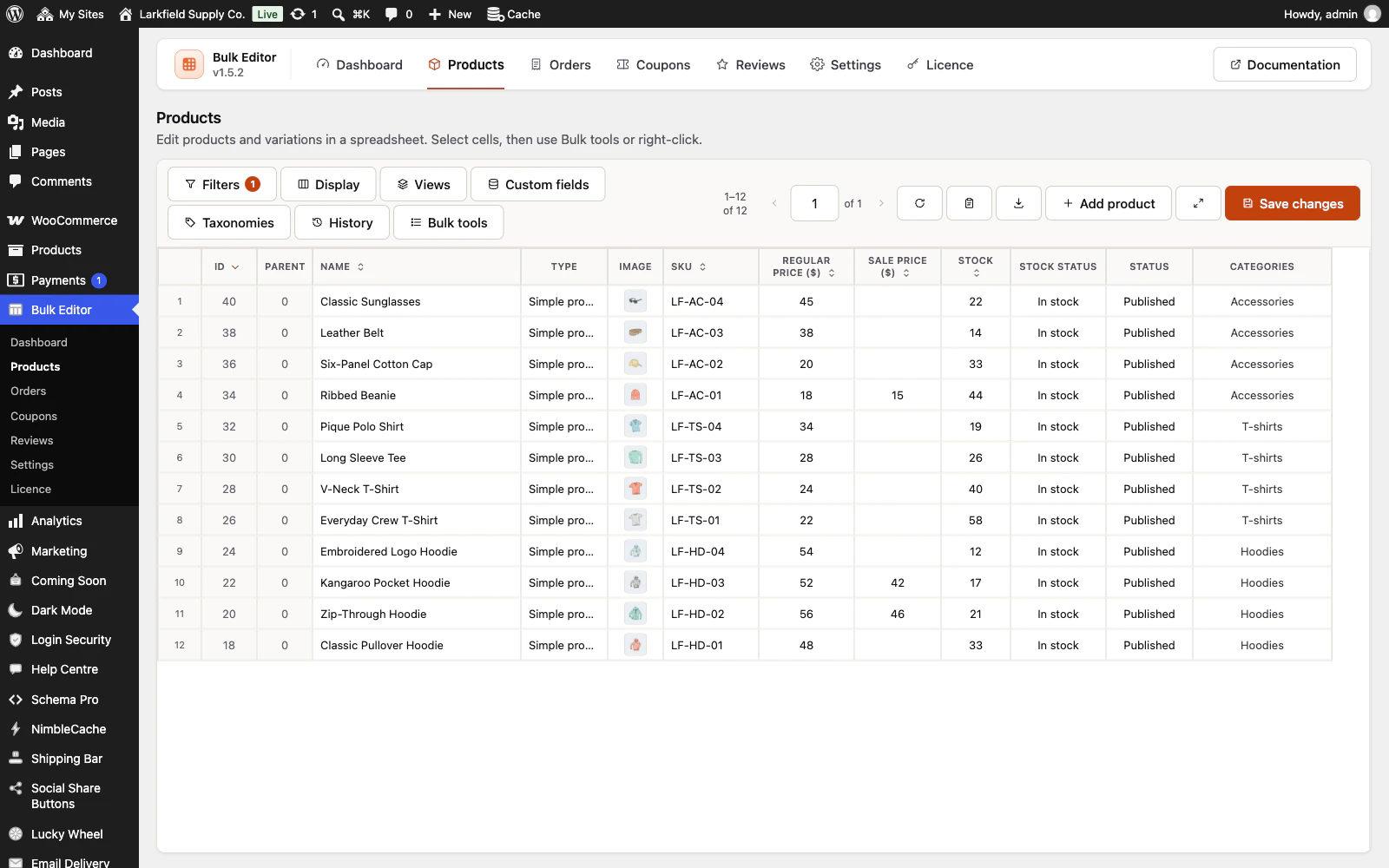
Bulk Editor for WooCommerce is our plugin for this. It opens your products as a spreadsheet grid in wp-admin, with each variation listed under its product. Select the Regular price cells, press Bulk tools or right-click, and choose Calculate: increase, decrease or set, by an amount or a percent. Rounding offers End in… (0.99, 0.95, 0.90, 0.00 or your own) with Up to the next or Nearest, and Round to a step such as 0.05. It works from the price as your store shows it, a price of 0 stays 0, and a line under the fields shows what the first selected row becomes before anything is written, for example "First selected row: 19 → 20.99". Apply to: All N records in this list changes every product the filters match, across every page (Bulk tools).
Changed cells are tinted until you press Save changes, and only those cells are sent, through WooCommerce, twenty rows at a time; the rest of the row is left exactly as it is stored (Editing cells). Every save is a history point. Undo on the message after a save puts that save back, and History lets you revert one field, one record or a whole point later on, for as long as you keep history points, 30 days unless you change it (History).
What it does not do: it does not import products, so a supplier's figures come in as a list by SKU, pasted or opened from their CSV file. A sale price that would not be below the regular price is held back from saving and named. Undo cannot bring back variations that were deleted, because WooCommerce deletes them outright. Exports stop at 50,000 rows and say so at the end of the file.
Before and after: a checklist#
- You have an untouched export with ID, regular price, sale price and both sale date columns.
- You tried the change on a few products, or on the first rows of the sheet, and checked them on the shop.
- Variable products were checked separately: their variations are what carry the prices.
- Scheduled sales still have their dates, and running sales still show a lower price.
- Free products are still free, and no price has become zero or ten times what it was.
- Your page cache shows the new prices to a signed-out visitor.
- You know how you would put it back, and you have kept the file that does it.
The plugin for this
 Bulk Editor for WooCommerce
Edit WooCommerce products, orders, coupons and reviews in one spreadsheet, paste supplier lists by SKU, undo your edits.
From $19 a year · every feature · 30-day refund
Change prices with a worked example and one UndoRead the docs
In the documentation
- Bulk tools Documentation
- History Documentation
- Editing cells Documentation
- Can prices end in .99? Knowledge base
- How do I set prices from the cost plus a margin? Knowledge base
- Can I undo a save? Knowledge base
- How many rows can I edit at once? Knowledge base
- Does saving trigger my other plugins? Knowledge base