


WooCommerce can already update existing products from a spreadsheet: save the supplier's sheet as a CSV with a SKU column and the new values, then use Products → All Products → Import with Update existing products ticked, and every row whose SKU matches a product is updated. What it will not do is tell you before saving which lines are wrong, and a few of its rules change products you did not mean to change. Export your current values first, check the sheet against them, and keep that export as your way back.
The ways to bring a supplier's figures in#
There are three, and they suit different suppliers.
WooCommerce's own importer is free and already installed. It reads a CSV file, matches rows to products by ID or SKU, and writes only the columns you map. It is the right tool when the supplier sends a file you can tidy into the shape WooCommerce expects.
A file-import plugin earns its keep when the supplier publishes a feed at a web address that should be read on a schedule, or when the file needs reshaping you would rather set up once than do by hand every week.
Pasting is the third way: copy the SKU column and one value column out of the supplier's sheet and paste them into a tool that matches them in wp-admin. It suits a weekly price or stock sheet that arrives in a different layout each time, where making a CSV is the slow part.
The rest of this guide uses the free importer, and the checks apply to any of the three.
Prepare the supplier's sheet#
- Make a copy of the supplier's file and work on that. Delete everything except one column of SKUs and the columns you are going to change.
- Rename the headings to the names WooCommerce's export uses: SKU, Regular price, Sale price, Stock and In stock?. The importer then maps them for you.
- Format the SKU column as text before you paste anything into it. A spreadsheet that treats
000123as a number turns it into123, and that no longer matches. - Write prices as plain numbers with a decimal point, the way WooCommerce's own export writes them:
12.50, with no currency sign and no thousands separator. - Fill In stock? with
1,0orbackorder, the values WooCommerce's own export uses.
The decimal separator matters more than it looks. The importer reads a point as the decimal separator on any store, but on a store whose prices are written with a point (set under WooCommerce → Settings → General) it drops a comma, so 12,50 becomes 1250. We tried it on a test shop running WooCommerce 11.2, and that is the price it saved. Open the CSV in a plain text editor before importing and look at a few lines: what you see there is what the importer reads.
Check the sheet against your shop before importing#
The importer tells you afterwards which rows it skipped. It is better to know before. Export your current values first: on Products → All Products, press Export, choose ID, Type, SKU, Name, Regular price, Sale price, Stock and In stock? under Which columns should be exported?, and press Generate CSV. Keep that file as it is. Then open it in the same spreadsheet as the supplier's sheet, on a tab called Shop, and add a few formulas beside the supplier's columns, assuming SKUs in column A and the shop's SKUs in column C of the Shop tab:
=COUNTIF(Shop!C:C, A2)             0 = no product has this SKU, 2 or more = two products share it
=COUNTIF(A:A, A2)                  2 or more = this SKU is on more than one line of the sheet
=VLOOKUP(A2, Shop!C:H, 6, FALSE)   the shop's current regular price, to read beside the new one
WooCommerce writes those columns in the order ID, Type, SKU, Name, In stock?, Stock, Sale price, Regular price, so counting from SKU as 1, Regular price is 6 and Stock is 4. Filter on the first two formulas and deal with every line that does not say 1 before you import:
- A SKU that matches nothing is skipped by the importer with "No matching product exists to update." It is usually a typing difference, a SKU the supplier changed, or a product you never stocked.
- A SKU two of your products share should be fixed in the shop first. WooCommerce refuses a duplicate SKU when a product is saved through it ("Invalid or duplicated SKU."), but a tool that writes to the database directly can leave one behind, and the importer's lookup then picks one of the two without saying which.
- A SKU on two lines of the sheet means two values for one product. Whichever row the importer meets last wins.
- A price for a variable product does nothing useful. Its variations carry the prices, each with its own SKU.
If every SKU comes back 0, including ones you know exist, WooCommerce's product lookup table may be empty, which some import tools leave behind. The importer matches SKUs through that table. Fill it under WooCommerce → Status → Tools → Product lookup tables → Regenerate.
Import it#
- Go to Products → All Products → Import and choose the CSV.
- Tick Update existing products. The screen says what it does: "Existing products that match by ID or SKU will be updated. Products that do not exist will be skipped."
- Press Continue. On Column mapping, map SKU and the columns you are changing, and set anything else to Do not import.
- Press Run the importer. It works through the file 30 rows at a time and ends with a count of products updated and skipped; View import log lists each skipped row and the reason.
Only mapped columns are written. On the test shop, an import carrying SKU, regular price and stock left each product's description and sale price untouched.
Stock needs care, because of two rules in the importer that we confirmed on the test shop:
- A stock figure turns on Manage stock for that product. On a variation that used its parent's stock, it switches the variation to a stock count of its own, and the parent's figure no longer covers it.
- An empty Stock cell turns Manage stock off. If the file has no In stock? column as well, the product is also marked in stock: an untracked product that was out of stock came back in stock after an import with a blank stock cell.
So leave a row out rather than leaving its stock blank, and send stock figures only for products that track stock themselves.
Variations, drafts and translated shops#
Variations are matched by their own SKU, like any product, so a supplier sheet that lists sizes and colours separately works as long as each variation has a SKU in your shop. Drafts and private products are matched too; products in the Trash are not.
On a shop translated with WPML or Polylang, a product and its translations can share one SKU. Matching by SKU then reaches one of them, and what happens to the others is up to the translation plugin's own settings. Matching by ID, from an export of the default language, is the safer route there.
Undo the whole run#
WooCommerce keeps no record of what an import changed. The file you exported before importing is the record: import it again the same way, with Update existing products ticked, mapping ID and the columns you changed. Map In stock? along with Stock, so products that do not track stock keep the status they had.
A weekly routine for a supplier sheet#
- Save the supplier's file as it arrived, with the date in its name.
- Export your current values, as above, and keep that file with it.
- Run the formulas, and fix or delete every line that does not match exactly one product.
- Import, then open three or four of the changed products on the shop, signed out.
- Keep both files until the next sheet arrives.
Doing it with Bulk Editor for WooCommerce#
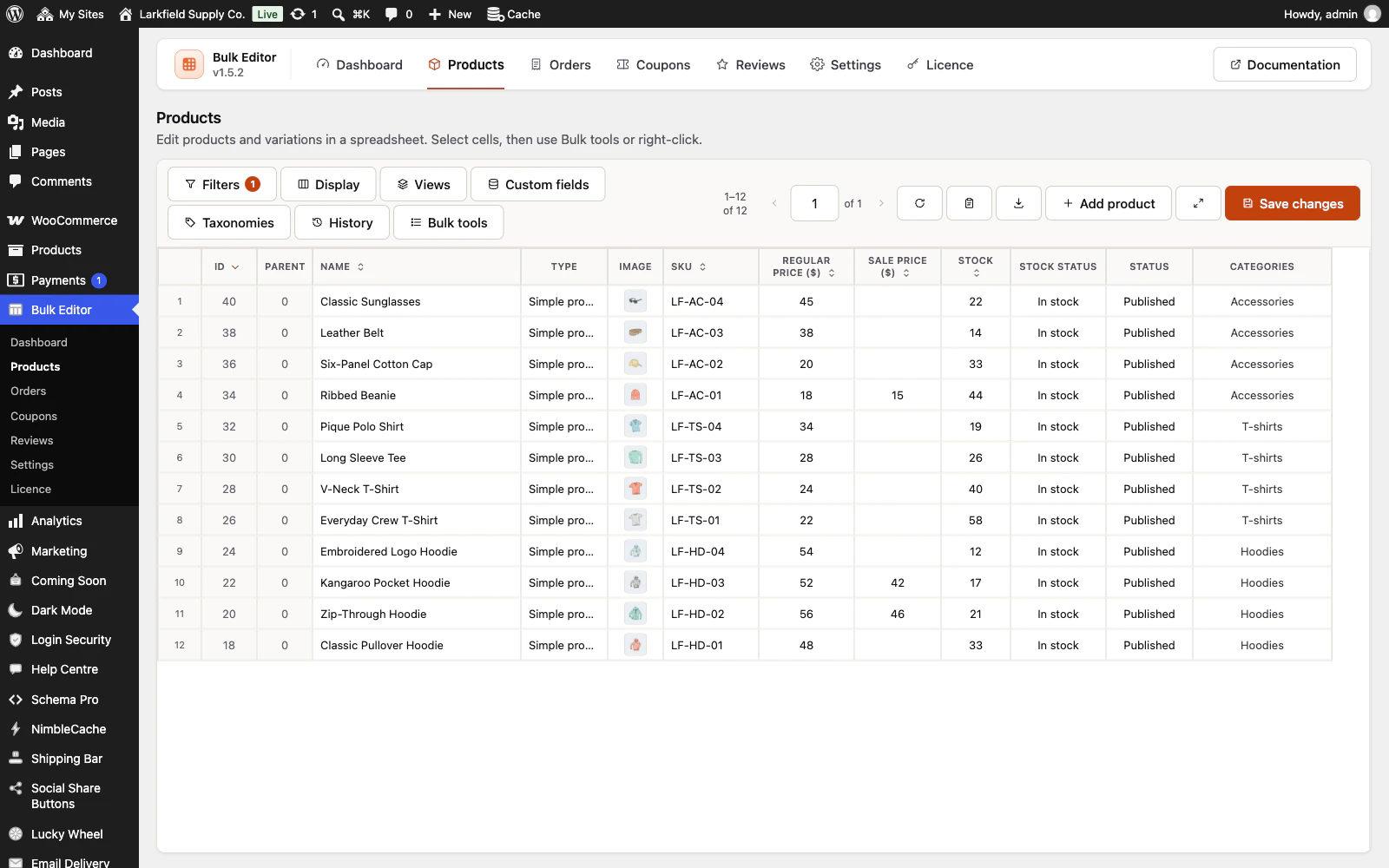
Bulk Editor for WooCommerce is our plugin, and its Paste a list does the checking part for you in wp-admin. On the Products editor, press the clipboard button beside the download button, choose the Column to change (Stock, Stock status, Regular price, Sale price or Cost of goods, whichever are showing in the grid), and paste the SKU column and the new value column straight from the supplier's sheet, in whatever order they are. Check the list saves nothing: it shows Will change, Already that value and Left out, each change as Now and New, and every line left out grouped by its reason, such as a SKU no product has, a SKU two products share, a value written differently from the way your store writes numbers, a product whose stock is not tracked, or a sale price that would not be below the regular price. A blank value never clears a price or a stock figure; that line is left out (Pasting a list from a spreadsheet).
Apply changes saves through WooCommerce, twenty products at a time, and the whole run is one point in History, with Undo on the message that follows (History). On a WPML or Polylang shop, a product and its translations count as one product.
It takes the list as pasted text or straight from the supplier's CSV file (Open a file...), read in your browser and never uploaded; an .xlsx file has to be saved as CSV first. What it does not do: it changes one column per run, so prices and stock are two runs. It updates products that exist and creates none, and a list can have up to 5,000 lines.
Before you call it done#
- The supplier's original file and your own export from before the change are both saved.
- Every line in the sheet matched exactly one product, or was removed on purpose.
- Prices in the CSV have a decimal point and no thousands separator, checked in a text editor.
- No stock cell was left blank, and In stock? was imported with Stock.
- A few changed products look right on the shop to a signed-out visitor, variations included.
- The importer's count of updated and skipped rows matches what you expected.
The plugin for this
 Bulk Editor for WooCommerce
Edit WooCommerce products, orders, coupons and reviews in one spreadsheet, paste supplier lists by SKU, undo your edits.
From $19 a year · every feature · 30-day refund
In the documentation
- Pasting a list from a spreadsheet Documentation
- History Documentation
- Exporting what you are looking at Documentation
- Can I update prices or stock from a supplier's spreadsheet? Knowledge base
- Does Paste a list work on a shop translated with WPML or Polylang? Knowledge base
- The message says only some records were saved Knowledge base