


A free shipping progress bar tells each shopper how much more they need to spend before delivery is free, and fills as they add to the cart. WooCommerce does not draw one itself, but it already holds everything a bar needs: a Free shipping method with a minimum order amount, and the cart. Whichever way you show it (a few lines of code, a theme widget or a plugin), it has to count the cart exactly as WooCommerce does, or it will promise free delivery that checkout then charges for.
What the bar needs before it can work#
A bar counts towards something, so the first job is in WooCommerce:
- Go to WooCommerce → Settings → Shipping. The Shipping zones screen lists your zones.
- Press Edit on the zone your customers are in, for example the one that covers the United Kingdom.
- Press Add shipping method, choose Free shipping and continue.
- Set Free shipping requires to A minimum order amount, type the amount into Minimum order amount, and save.
WooCommerce's own Free shipping documentation walks through the same screens.
Zones decide who can see a bar at all. Each zone has its own methods, so free shipping set up in a UK zone does nothing for a shopper whose address falls in a Europe zone or in Rest of the world. That shopper should see no bar, because there is nothing for them to reach.
Before a shopper has typed an address, WooCommerce places them using WooCommerce → Settings → General → Default customer location. On Shop country/region, the default, everyone starts in the zone for your own country. On Geolocate they start wherever their connection appears to be, which matters on a cached site (see "Where to put it" below).
Which amount the bar has to count#
WooCommerce decides whether free shipping applies with one sum, in the is_available() check of its Free shipping method. A bar that is to agree with checkout has to make the same sum:
- Start from the cart's item subtotal. Shipping costs are not part of it.
- Include tax only if the cart shows prices with tax, which is the Display prices during cart and checkout setting under WooCommerce → Settings → Tax.
- Take coupon discounts off, unless the method's Coupons discounts box, Apply minimum order rule before coupon discount, is ticked. When the cart shows prices with tax, the tax on the discount comes off as well.
- Round to your store's number of decimals and compare. Reaching the amount exactly counts: a cart of 50.00 against a minimum of 50 ships free.
The method's Free shipping requires setting changes what the sum is for:
- With A minimum order amount, only the sum counts. A coupon with Allow free shipping ticked makes no difference.
- With A minimum order amount OR coupon, either one unlocks it, so a bar should say shipping is free as soon as such a coupon is applied.
- With A minimum order amount AND coupon, the amount alone is not enough. A bar that says "free" at the amount is wrong until the coupon is in the cart.
- With A valid free shipping coupon, there is no amount to work towards, so a progress bar has nothing to show.
The rule takes no notice of shipping classes: a bulky item counts towards the amount like anything else.
Then look at the order of the zone's methods. When the rates on offer change, WooCommerce selects the first one the zone lists. In a zone that lists Flat rate above Free shipping, a shopper who crosses the amount still has Flat rate selected, a moment after being told delivery is free. On a test shop running WooCommerce 11.2, a cart that went from 20.00 to 60.00 kept Flat rate selected; with Free shipping dragged to the top of the list, the same cart switched to it. You can do that, or tick Hide shipping rates when free shipping is available under WooCommerce → Settings → Shipping → Shipping settings, which leaves only Free shipping and any local pickup on offer once it applies.
Three ways to show it#
A notice from a few lines of code#
On the classic cart, WooCommerce runs a hook above the cart (woocommerce_before_cart) and another above the checkout form (woocommerce_before_checkout_form). The snippet below uses both. It finds the Free shipping method in the shopper's own zone, makes the sum above, and prints a WooCommerce notice such as "Spend £30.00 more and your order ships free." It prints nothing once shipping is free, for a shopper whose zone has no free shipping, or when free shipping needs a coupon.
Add it with a code snippets plugin, or at the end of a child theme's functions.php (a parent theme's file is replaced every time the theme updates):
add_action( 'woocommerce_before_cart', 'myshop_free_shipping_notice' );
add_action( 'woocommerce_before_checkout_form', 'myshop_free_shipping_notice' );

function myshop_free_shipping_notice() {
	$cart = WC()->cart;
	if ( ! $cart || ! $cart->needs_shipping() ) {
		return;
	}

	$packages = $cart->get_shipping_packages();
	$package  = reset( $packages );
	if ( ! $package ) {
		return;
	}

	foreach ( wc_get_shipping_zone( $package )->get_shipping_methods( true ) as $method ) {
		if ( 'free_shipping' !== $method->id ) {
			continue;
		}

		// Already free, or free only with a coupon: nothing to count towards.
		if ( $method->is_available( $package ) || ! in_array( $method->requires, array( 'min_amount', 'either' ), true ) ) {
			return;
		}

		// The same sum WooCommerce makes when it decides whether shipping is free.
		$total = $cart->get_displayed_subtotal();
		if ( 'no' === $method->ignore_discounts ) {
			$total -= $cart->get_discount_total();
			if ( $cart->display_prices_including_tax() ) {
				$total -= $cart->get_discount_tax();
			}
		}
		$remaining = (float) $method->min_amount - round( $total, wc_get_price_decimals() );

		wc_print_notice(
			sprintf( 'Spend %s more and your order ships free.', wc_price( $remaining ) ),
			'notice'
		);
		return;
	}
}
We ran it on a test shop (WordPress 7.1, WooCommerce 11.2) with free shipping from £50 in a UK zone and none in a US zone. One £20 item showed "Spend £30.00 more", two showed £10.00, three showed nothing because Free shipping was on offer, three with a 20% coupon showed £2.00, and a US address showed nothing.
It has limits. It is a sentence, not a bar. The classic cart redraws it when the shopper presses Update cart, because WooCommerce reloads the cart's notices then, but the checkout notice is drawn once, with the page. And the Cart and Checkout blocks do not run these hooks at all: on the same test shop, the block cart showed nothing. To see which you have, edit the Cart page under Pages and look at the block it holds. Cart is the block version; Classic Cart, or a [woocommerce_cart] shortcode, is the classic one.
A theme or page-builder widget#
Some themes and page builders include a free shipping bar or an "amount left" widget. Before you rely on one, put four questions to it:
- Does it read the amount from your Free shipping method, or ask you to type it again? A typed copy is a second number to keep in step, and it cannot follow different amounts in different zones.
- Does it take coupons off the way your method does, and count tax the way your cart shows it?
- Does it update when the cart changes without a page load, on the block cart and in the mini-cart too?
- What does it show a shopper whose zone has no free shipping?
A plugin#
A dedicated plugin is worth it when you want a bar on every page, on the block cart and checkout, and in the mini-cart, without maintaining code. The same four questions apply.
Where to put it#
The cart page is where the gap matters most: the shopper is looking at the total and deciding whether to add something. The mini-cart in the header comes next, because shoppers glance at it after each add to cart. A line on the product page can say whether this item gets the cart there, though it should stay quiet where the sum could be wrong, such as when a percentage coupon is already in the cart. A bar across the top of the site tells people the offer exists before they have added anything. At checkout, keep it small: the shopper is typing an address.
Caching changes what is safe. WooCommerce tells caching plugins not to keep the cart, checkout and account pages, so a notice there is always worked out for the person reading it. Every other page is probably cached, which means a bar written into the HTML of a product page was written for whoever loaded that page first. A bar outside the cart has to update itself in the browser from the visitor's own cart once the page has loaded. With Default customer location on Geolocate, a cached page can also carry another country's amount; WooCommerce offers Geolocate (with page caching support) for that case.
Wording that is true#
Each moment of the bar needs its own sentence, and each has to be true for the person reading it.
- Before anything is in the cart: "Free UK delivery on orders over £50." Name the area if the offer is not for everyone.
- On the way: "Spend £12.40 more for free delivery." Use the shop's own price format, so the figure matches what the shopper can check against the cart.
- Once reached: "Your order ships free." Say it only when checkout will select free shipping (see the zone order above).
- Out of reach: for a shopper whose zone has no free shipping, show nothing. "Free shipping over £50" to someone who can never get it is a promise checkout will break.
- Coupon-only offers: say so plainly, as in "Free delivery with code SHIPFREE", rather than drawing a bar that can never fill.
Doing it with Free Shipping Bar for WooCommerce#
Free Shipping Bar for WooCommerce is our plugin for this job. On Shipping Bar → Setup, Use the WooCommerce threshold takes the minimum from the Free shipping method in the shopper's own shipping zone, and the cart is measured the way WooCommerce measures it: the same subtotal, tax counted as your cart displays it, and coupon discounts subtracted only if your Free shipping method subtracts them. The details are in Where the threshold comes from and What the cart counts for. A shopper whose zone offers no free shipping sees no bar.
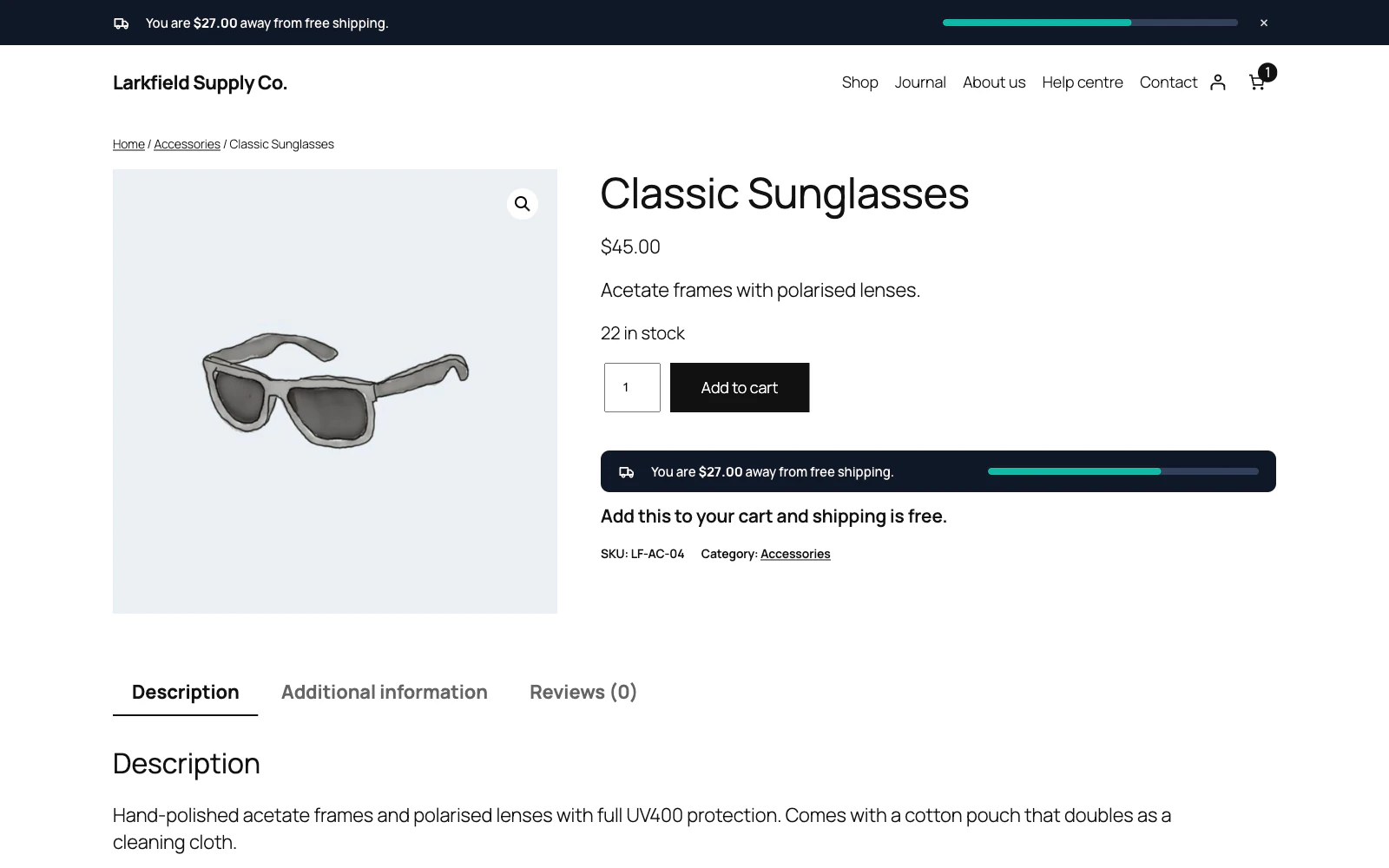
The bar moves as the cart changes, with no page reload, on the classic cart and on the Cart and Checkout blocks, and keeps every bar on the page in step. There are twelve designs. It sits at the top or the bottom, with in-page reminders on the cart, the checkout, product pages and the mini-cart, or anywhere you put the [trasl_free_shipping_bar] shortcode (Placing the bar). Setup → Checkout → When free shipping is unlocked can choose Free shipping for the shopper, or show only the free options, so checkout keeps the bar's promise (Checkout, once free shipping is unlocked). On a cached site the bar is drawn into the page and then updated in the browser (Speed and caching).
What it does not do: it does not create free shipping. It needs a Free shipping method with a minimum amount, or an amount you type under Enter an amount for shops whose free shipping comes from another shipping plugin, and in that case it leaves checkout alone. Its optional line on product pages and its suggestions of what to add on the cart page work from the products' own prices, so they do not know about a price another plugin changes in the cart, such as a bulk discount. It tracks nothing about your shoppers.
Check it works#
Run through this in a private browser window, signed out, before you announce the offer:
- Add one inexpensive item. The figure should be your minimum less the cart subtotal, with tax included only if your cart shows prices with tax.
- Add enough to pass the amount. The bar or notice should say shipping is free, and the cart's shipping line should have Free shipping selected, not Flat rate.
- Apply a percentage coupon. If your method subtracts discounts, the amount left should grow by the discount.
- Enter an address in another zone. The figure should change to that zone's amount, or disappear if the zone has no free shipping.
- Repeat on the block cart and checkout if your shop uses them, and in the mini-cart.
- Open a product page your cache has served before, add something, and check the bar updates without a reload.
- Place a test order past the amount and confirm it shows Free shipping and no shipping charge.
The plugin for this
 Free Shipping Bar for WooCommerce
Show every shopper how close their cart is to free shipping, and how much more it takes.
From $19 a year · every feature · 30-day refund
In the documentation
- Where the threshold comes from Documentation
- What the cart counts for Documentation
- Checkout, once free shipping is unlocked Documentation
- Placing the bar Documentation
- Speed and caching Documentation
- Do I have to type my free shipping amount anywhere? Knowledge base
- The bar says the shopper has reached free shipping, but checkout disagrees Knowledge base
- Does it work with the new block cart and checkout? Knowledge base
- Does it work with a currency switcher? Knowledge base
- Does it work on a cached site? Knowledge base
- What if my free shipping only unlocks with a coupon? Knowledge base
- Checkout charged shipping after the bar said free Knowledge base