


A table of contents gives each section of a long post its own address, such as /your-post/#delivery-times, and Google can use addresses like that to send a searcher straight to the right section. Google decides when to do it, and nothing you add guarantees it. What you control is that every heading has a readable id that is unique on the page and never changes, that the sections are visible when the page loads, and that nothing on the page strips the # part from the address.
What jump links in Google are, and who decides#
Google's snippet documentation describes "Read more" deep links: a link inside a search result that leads to a specific section of the page. It lists three practices that make them more likely:
- the content is visible to a person as soon as the page loads, not hidden behind an expandable section or a tab;
- no script controls the scroll position on page load, for example by forcing it back to the top;
- a script that changes the address on page load does not remove the
#fragment, because that breaks deep linking.
Featured snippets work a little differently. Google's featured snippets page says a click on one scrolls to that section automatically, without any annotation by the site. A link can point at words rather than at an id: MDN's page on text fragments, addresses ending in #:~:text=, gives a search engine linking to a sentence in its results as the example, with no markup needed on the page. It also gives the limit: when the words change, the link falls back to the top of the page. For a link that should last, an id on the heading is the steadier target.
Where a table of contents comes in is older advice from Google itself. When these links first appeared, Google's Search Central blog (September 2009) asked for long pages split into sections, a descriptive anchor for each ("not just Section 2.1"), and a table of contents linking to them. It also said the links appear only for queries where Google thinks a link to a section would be useful. None of this is a ranking promise. A contents list helps readers, and it gives Google a clean map of your sections; whether Google uses it is Google's call.
What makes a heading link worth having#
An anchor is the id on a heading. The link to it is the page address followed by # and that id. Three things make one worth having:
- Readable.
#delivery-timestells a reader where they are going;#section-2or#h-4f9adoes not, and Google's 2009 advice asks for descriptive names. - Unique on the page. Two headings with the same id send every link to the first one. WordPress's own Page Jumps guide also asks for no spaces and a letter at the start.
- Permanent. Once a link is shared in an email, a forum post or another site, changing the id breaks it, and nothing tells you.
Adding anchors by hand in WordPress#
Out of the box, the block editor leaves a heading without an id until you give it one:
- Click the heading.
- In the block settings sidebar, open Advanced.
- Type the anchor into HTML anchor, for example
delivery-times. The editor's help text asks for a word or two with no spaces.
In the classic editor, switch to the Text tab and write the id on the heading itself:
<h2 id="delivery-times">Delivery times</h2>Then build the contents list: a List block near the top of the post, where each item links to # plus an anchor. To link from another page, use the full address with the anchor on the end.
This works, and for a handful of posts it is all you need. It does not scale well. Every heading on every post needs an anchor typed in, the list has to be edited each time a heading is added, moved or removed, and nothing warns you when the list and the headings disagree.
Renaming a heading breaks old links#
An anchor you typed into HTML anchor stays as it is when you change the heading's words, which is exactly what you want: rename "Delivery times" to "Delivery times and costs" and #delivery-times keeps working. Leave the anchor alone even if it no longer matches the words perfectly.
An anchor made automatically from the heading's words is different. When it is made again from the new words it changes, and every link already shared to the old one now opens at the top of the page. You find out only if somebody tells you.
If that has already happened, put the old anchor back as an empty target just above the heading. Add a Custom HTML block before it containing:
<span id="delivery-times"></span>Now both the old link and the new one land on the same section. Never reuse an old id for a different section, because the people following that link wanted the old one.
Long posts: keep the list usable#
A sticky header can cover the heading after a jump. One line of CSS, using the scroll-margin-top property, reserves the space; set the number to your header's height:
h2[id], h3[id] { scroll-margin-top: 80px; }A few more things keep a long post easy to move around:
- Folding the contents list itself is fine on phones, where a long list pushes the article off the screen. Do not fold the sections themselves into tabs or accordions if you want Google to link into them; its own guidance asks for content visible on load.
- Check that no script on the page removes the
#from the address or scrolls back to the top after the page loads. - A post split with the Page Break block is several pages, each with its own address (
/your-post/2/and so on). A link to a heading on page two needs that page's address plus the anchor.
Check your result#
- Open the post and view its source (Ctrl+U in most browsers on Windows, Option+Cmd+U in Chrome on a Mac). Search for
id=": each heading in the list should have one, and no two should match. - Copy a link with an anchor, open it in a private window, and check that the page opens at that heading, not underneath the header.
- After renaming a heading, try a link to its old anchor.
- In Google Search Console, inspect the address with the URL Inspection tool and choose View crawled page, which shows the HTML Google fetched (Google's instructions). The ids should be in that HTML, not only added later by a script.
Doing it with Table of Contents#
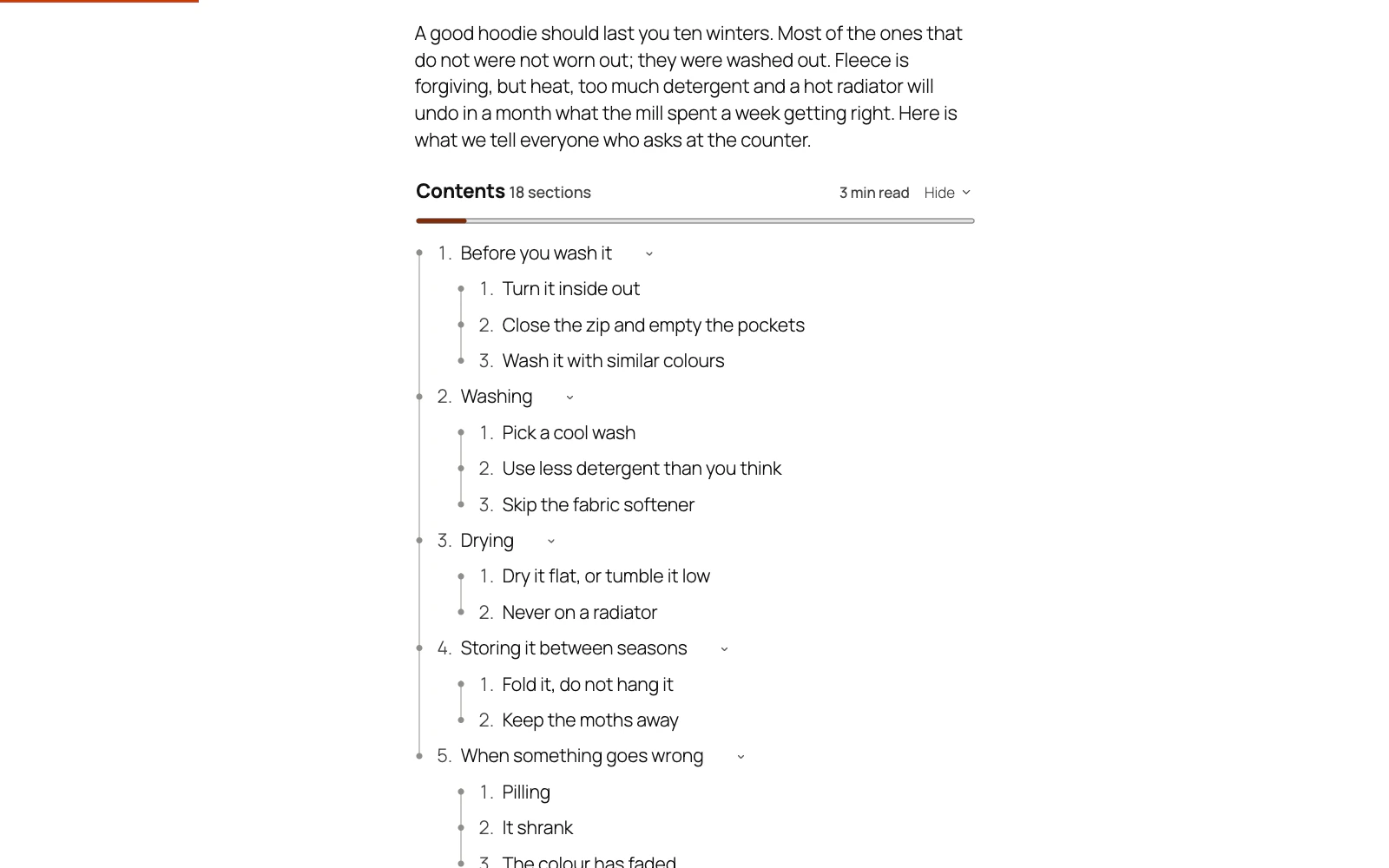
Table of Contents is our contents-list plugin. Once activated, any post with at least three headings gets a list before its first heading, built from H2, H3 and H4 by default. As What goes in the list explains, every heading in the list gets an id generated the way WordPress generates post slugs: lower case, accents removed, punctuation replaced with hyphens. Two headings with the same words get -2 and -3. A heading that already has an id keeps it, and ids the page already uses, such as the comment form's #comments or WooCommerce's #reviews, are set aside.
Keep old heading links working, on by default, deals with renames. Each save writes down the post's anchors. On the next save, an anchor that has gone is compared with the headings now there, and if one is recognisably the same heading under a new name, the old anchor is kept as an empty target beside it, so old links still land on the section. It will not guess: a heading rewritten from scratch, or one of two headings that could each be the rename, is left alone. A post keeps its last 25 old anchors.
For long posts, Getting around covers the sticky header setting, which measures your header's height rather than guessing it, and Folding it away covers starting the list folded on small screens. The list is a real set of links before any script runs, there are twenty designs, and nothing is fetched from another server.
What it does not do: it cannot make Google show jump links, and it does not raise rankings by itself; having clean anchors is the part you control. The old anchor is recorded the next time the post is saved after a rename, so a heading renamed and never saved since has nothing recorded. A page builder that draws its page outside the post content needs the [toc] shortcode placed in the builder's own text widget.
Checklist#
- Every heading you want people to link to has an id, readable and unique on the page.
- The contents list links to those ids, and each link opens at its heading, clear of the sticky header.
- Renamed headings either kept their anchor or have the old one back as an empty target.
- Sections are visible on load, not folded into tabs or accordions.
- Nothing on the page strips the
#from the address. - URL Inspection's crawled HTML shows the ids.
The plugin for this
 Table of Contents
Give a long post a contents list built from its own headings, and a permanent link to every section.
From $19 a year · every feature · 30-day refund
In the documentation
- What goes in the list Documentation
- Getting around Documentation
- Folding it away Documentation
- Two headings have the same name and the links go to the wrong one Knowledge base
- I changed a heading and now an old link is broken Knowledge base
- Will it help my search rankings? Knowledge base