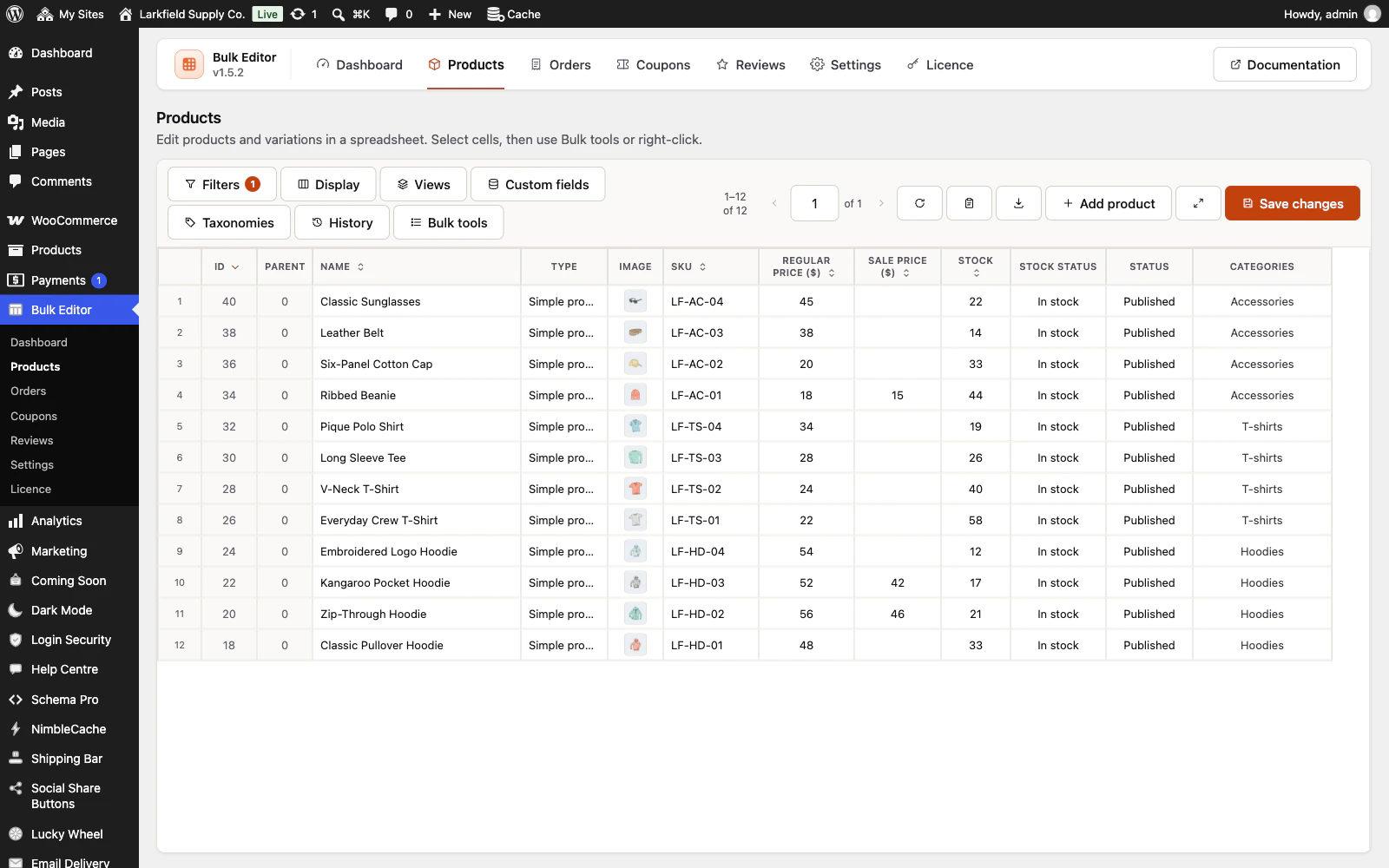
Yes. The download button on the toolbar writes the current view to a .csv file — the filters you have on, the columns you are showing, in the order you have them. Filter to the products with no image, or everything under five in stock, and the file is exactly that list.
It is an export. The editor has no file import, but a supplier's prices or stock can be brought in by SKU with Paste a list, pasted or from the supplier's CSV file, which shows every change before it is saved.
Categories and attributes come out as names rather than numbers, and the file opens in Excel with accented characters intact.
The file is the list as it was when you pressed download, in that order. Orders coming in while it is written do not repeat a row or skip one, even in a list sorted by stock, units sold or last modified. A record deleted meanwhile, or one that stops matching your filters, is left out, and a line at the end of the file says how many were.
Still stuck? Ask the developers who wrote it. We aim to reply within one business day.
 Bulk Editor for WooCommerce
Edit WooCommerce products, orders, coupons and reviews in one spreadsheet, paste supplier lists by SKU, undo your edits.
From $19 a year · every feature · 30-day refund